


Control your projects with improved importing, settings, and Vercel CLI.
With the launch of Zero Config Deployments, we made setting up your projects as easy as importing a Git repository, and having every push and pull request deployed with Vercel. No configuration.
Today, we're extending this process to non-JavaScript projects (like Hugo sites) and giving you full control over your project's automatically configured settings.
Copy link to headingBetter Import
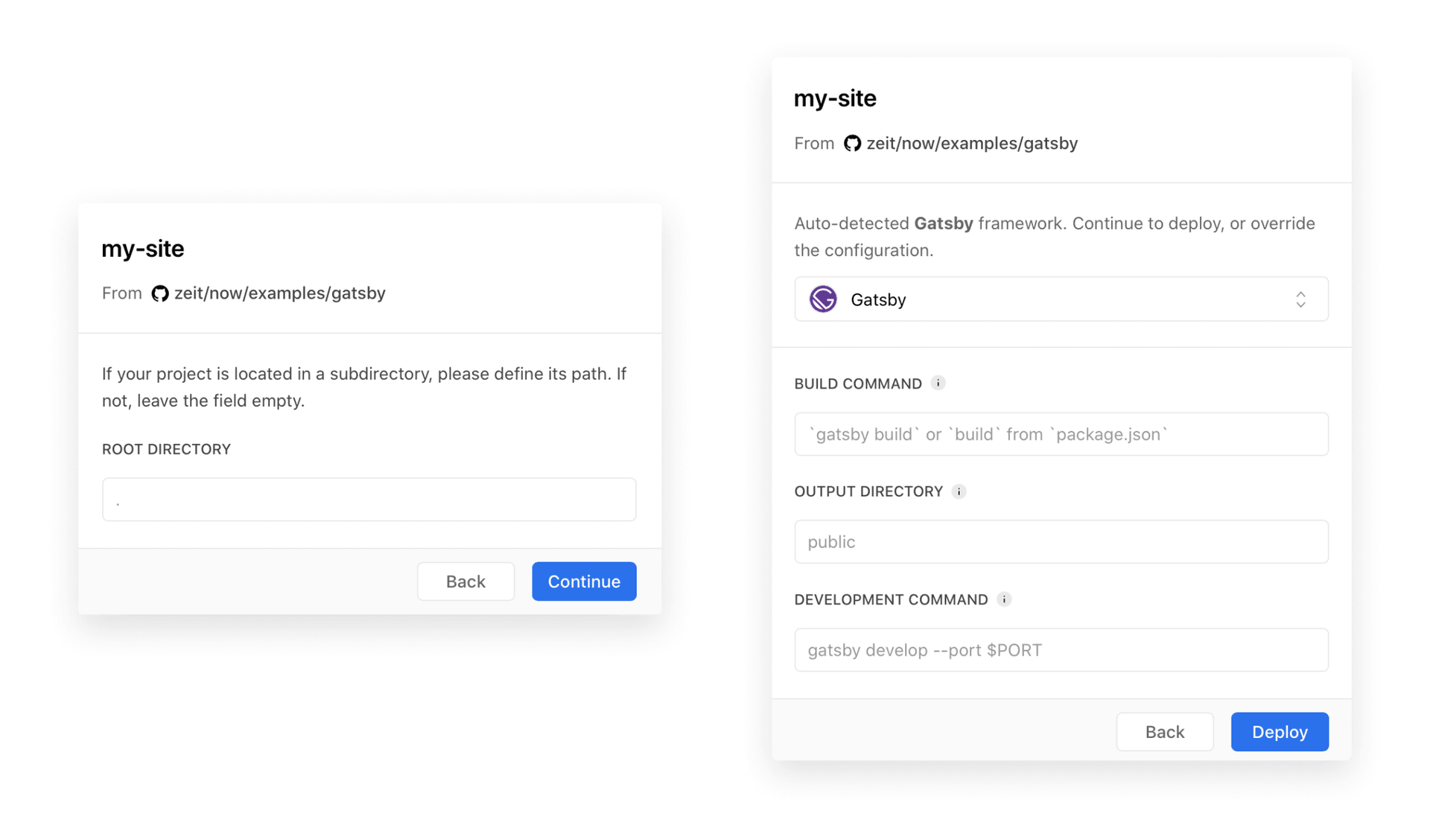
If your code is located in a subdirectory, you'll find it useful that connecting one of your Git repositories to Vercel will prompt you for specifying a Root Directory.
Additionally, you can now select a different Framework or overwrite its default settings:
Copy link to headingBetter Project Settings
Once you've deployed your project, you might still want to continue tweaking its configuration until it meets all your needs – no matter how advanced they are.
Because of that, you can now fully customize all of the options mentioned above right from the Project Settings:
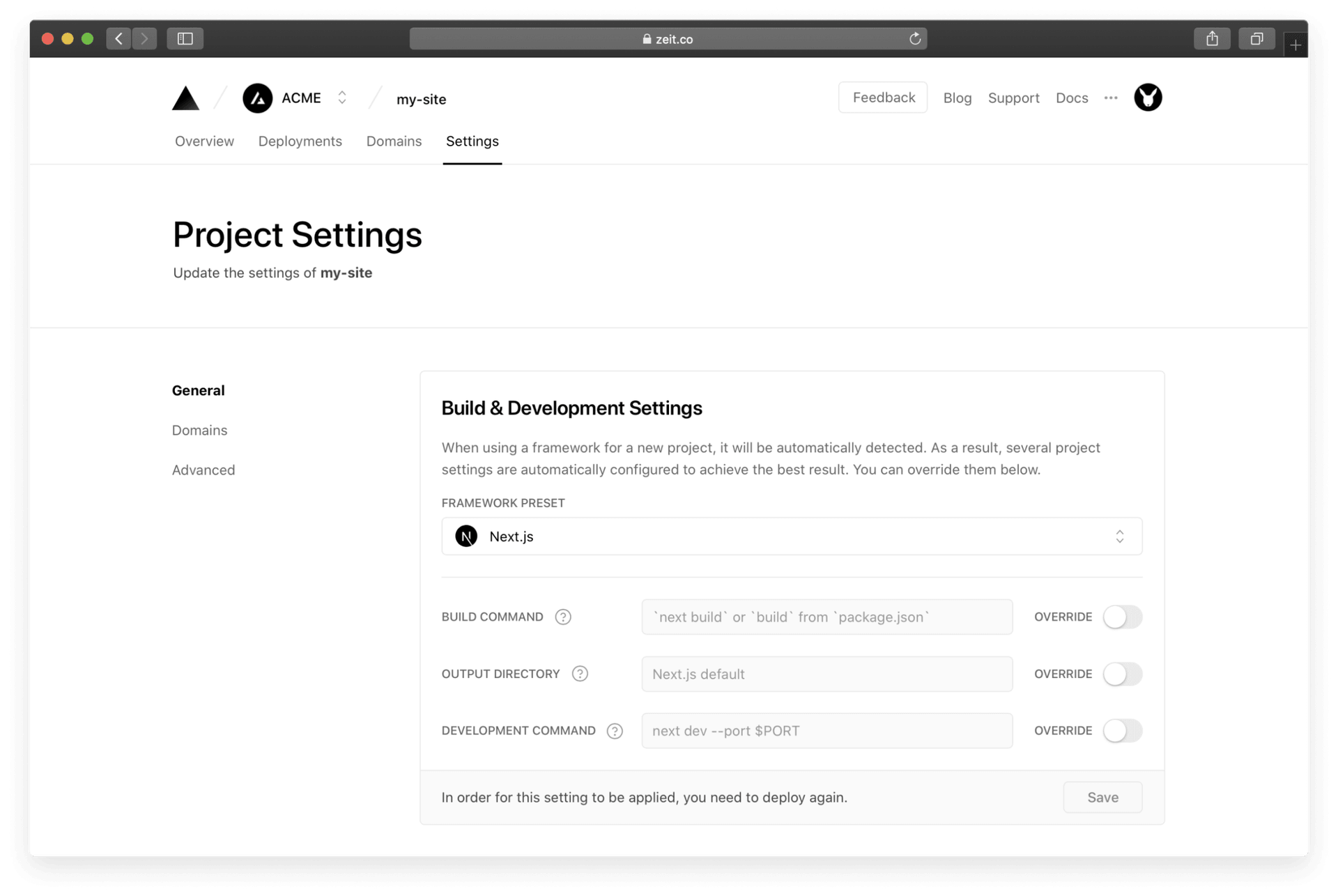
All of the fields are automatically optimized for your Framework by default. Overwriting one of them, however, is as easy as turning on the OVERRIDE toggle.
Copy link to headingBetter Vercel CLI
After importing your Git repository, every push and pull request gets deployed automatically. However, sometimes you might want to create a quick manual deployment from the CLI.
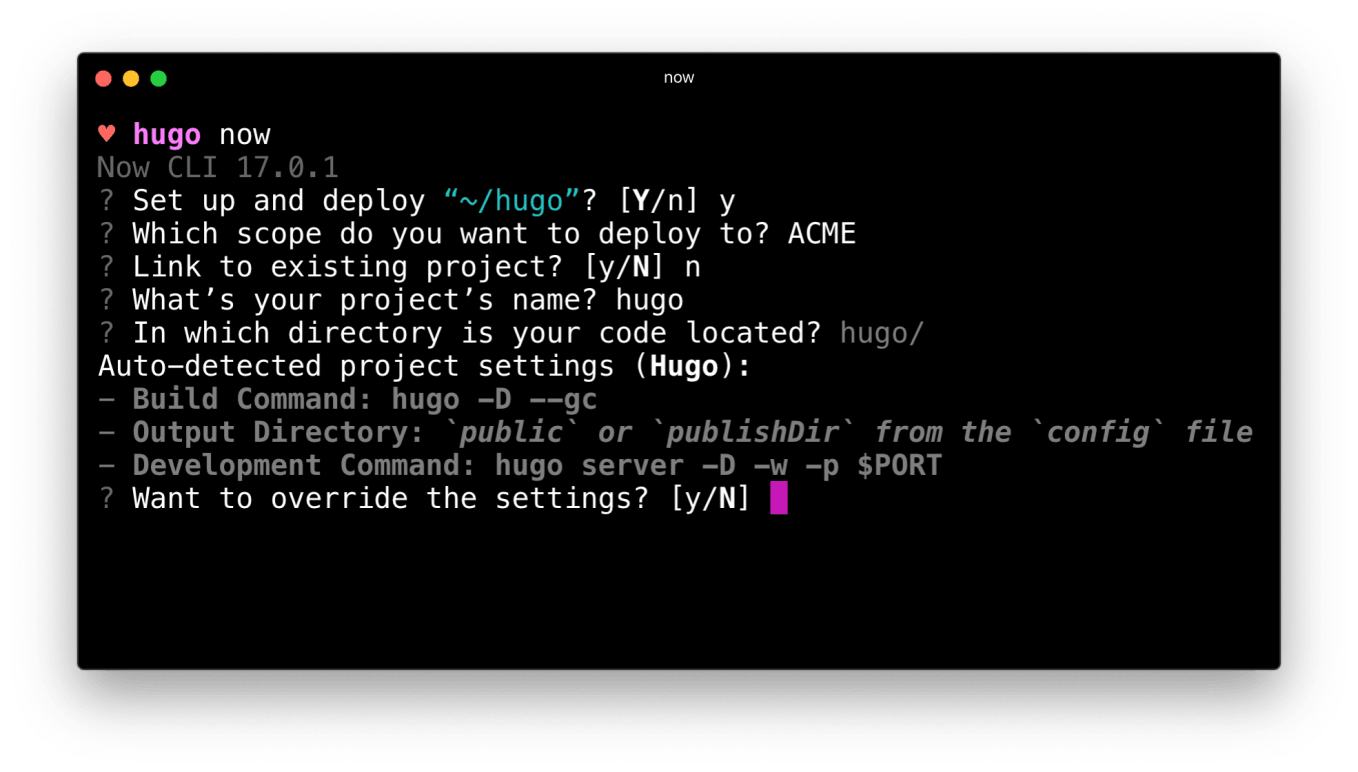
To make this easy, creating new projects through our command-line interface now surfaces the automatically detected configuration and lets you edit it on the fly:
For subsequent deployments, those values naturally don't have to be configured:
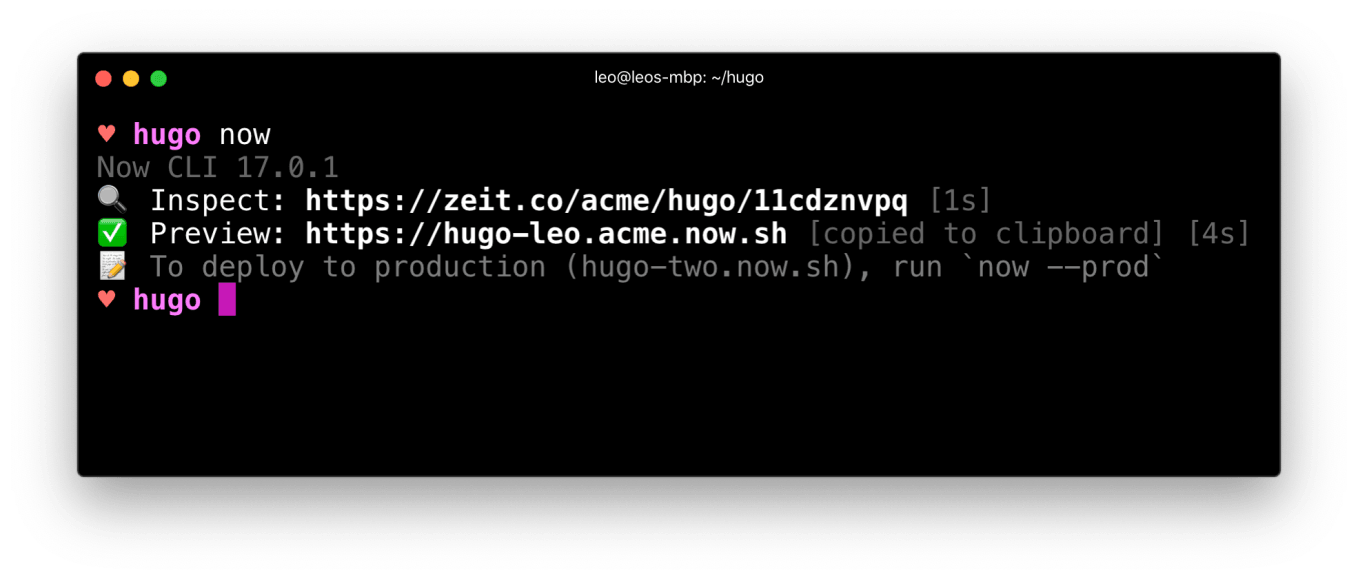
In order to run vercel dev, please make sure to first deploy using vercel. Additionally, vercel --confirm can be run to auto-confirm the prompts.
Aside from allowing for customizing your Framework settings, as you can see, Vercel CLI now also lets you link your local codebase to any project on Vercel – no matter its name or scope.
Copy link to headingConclusion
Thanks to the above changes, several new use cases are now possible:
Projects without a
package.jsonfile (like Hugo or Jekyll sites) can be deployed.Your project can be located in a subdirectory of your Git repository.
The Build Command, Development Command, and Output Directory can be customized.
The --name flag is now deprecated in Vercel CLI.
With this release, we've also paved the way for several additional fields that will enable an even more extensive range of use cases in the future. Stay tuned!